Claude Skills 2.0: The Advanced Tutorial (With 3 INSANE Fixes)
How to use Claude Skills the advanced way: keep them local to edit, back up & share them fast. Learn how to migrate yours, build better ones and get my 7 favorite skills for free.
You’ll learn:
- The 3 problems with installing Claude skills
- How to run skills from a local folder with a slash command
- How to migrate the skills you already installed
- How to build better skills with Anthropic's best practices
- How to organize your skills, plus my 7 favorite for free
Resources
Related videos


Intro
If you’re using Claude skills, you’re probably using them wrong. In this video I show you why you never want to install a skill ever again, how to fix the skills you already have today, and how to build the best ones going forward.
If you don’t know what skills are yet, start with my skills tutorial first. I’m a five-time entrepreneur who has generated hundreds of millions in revenue, and I teach AI automation to companies and classrooms worldwide.
Never Install Another Skill
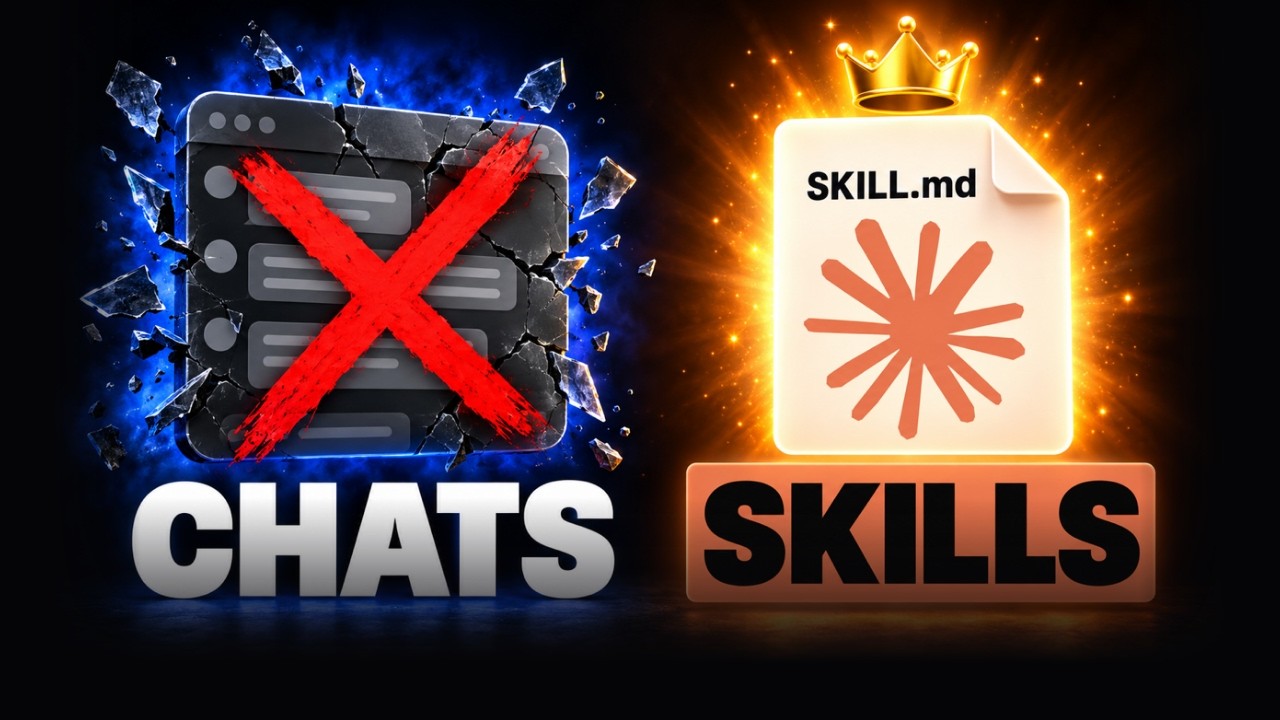
The standard way Claude teaches you is to install your skills. I’ll show you three problems with doing it that way.
The first problem shows up when you edit a skill. In Claude Cowork I asked it to add one word to the bottom of my invoices. It kept asking for permission again and again, to edit so many files, and it took so long. I edit skills all day long and I have 89 of them, so that gets frustrating fast. In Claude Code, the same prompt finished and handed me a zip file to download and upload again. Many times repackaging a skill would also break things or remove files.
I edit skills all day long, all the time.
The second problem is backing up and sharing. Your installed skills aren’t in your Dropbox, Google Drive or OneDrive, so those tools don’t back them up. To share with coworkers you need a team plan, and other people can’t edit what you share.
The third problem is using them in other tools. If you use ChatGPT or VS Code as well, you can find workarounds, but an edit in one tool won’t update in the other.
Using Local Skills
My solution is that I don’t install them. I keep them uninstalled, local on my computer. My invoice skill is just a folder with the skill’s files inside, and that folder sits in Dropbox. That fixes the backup problem, because it’s backed up all the time with revision history. It fixes sharing too. I can give any friend, family or team member view-only access, or edit access so we can both improve it. If you had a copywriting or branding skill, one edit updates it for the whole company.
So how does Claude know about a skill it hasn’t installed? The simple way is to copy the location of the folder, start a new session, and paste that location into your prompt. That works in any tool. The better way is to tell Claude to add a slash command for the skill. Now I type /invoice in a new session and it runs just like the installed one, so I can go back and remove the installed copy.
That’s where the biggest unlock is. Editing.
Editing is where you feel it. I told Claude to remove the payment terms from my invoice skill, and it did it in seconds. No re-zip, no extracting, no uploading. I can tell ChatGPT or VS Code to do the same thing, because the skills are just files and folders on the computer.
Uninstalling & Migrating Your Skills
If you already have a lot of skills installed, here’s how to move them. Open your skills in Claude, open each one and download it. Then here’s the trick: the file ends in .skill, so rename it to .zip and double click it to extract it. Now you have a folder with all the files. Drag it wherever you keep your skills. I keep mine in Documents, in a Claude folder, in a skills folder. Then start a new session, drag the folder in, and ask Claude to set up the slash command.
That’s great if you have about five. For more than that there’s a better way, because Anthropic has a guide on skill best practices. For example, it says to keep your main SKILL.md file under 500 lines. If you’re doing all this work, you might as well improve your skills at the same time.
So download my Skill Builder Protocol, a skill that creates new skills, edits existing ones and migrates your installed skills to this local system following Anthropic’s best practices. Then tell Claude: “Use the Skill Builder Protocol skill to migrate all of my installed skills to local skills.”
Creating New Skills
To build a new skill or edit one, start a new Claude session, type a slash, select the Skill Builder Protocol, and ask it to create your skill.
Here’s a pro tip so you never have to remember that. Tell Claude to edit your global CLAUDE.md file, so that any time you create or edit a skill it always uses the Skill Builder Protocol. That file holds the instructions every session on your computer remembers.
Here’s another one. Sometimes you just wish you could find other people’s skills, because someone has probably done it better already. My Skill Finder skill searches thousands of skills online and GitHub repos for whatever you need. Then you can tell Claude to merge the best parts into one skill customized for you or your business. That’s how I build a lot of my skills.
Someone surely has done this better than me possibly already, so why would I start from scratch?
Organizing Your Skills
When you have over 89 skills like I do, you start to lose track of them. So I made three folders: generic skills, personal skills and work skills. Inside work I have more subfolders, like design and development. It’s the best method I’ve found for staying organized, and if you have other ideas, tell me in the comments.
Keep your skills, files, context and memory files backed up in a folder like Dropbox or Google Drive. If your company has a shared folder, put the company’s shared skills there so everyone can use them.
The Skill Pack
Besides the Skill Builder Protocol and the Skill Finder, the download includes my five favorite skills that I use weekly: a YouTube summarizer, a coupon and promo code finder, an event ticket finder that finds the best seats, a Mac disk cleaner, and a health tracker for your blood tests, supplements and medications.
If all of this feels like too much, copy the transcript on this page, paste it into Claude and say, do what David told me to do. It will do everything for you.
If you’re using Claude skills, you’re probably using them wrong. In this video, I’m going to show you why you never want to install a skill ever again, how to fix the skills you already have today, and how to build the best ones going forward. And if you don’t know what skills are, make sure to watch my skills tutorial right here first. If you don’t know me, my name is David Bitton, and I’m a five-time entrepreneur that’s generated hundreds of millions in revenue, and I’m teaching AI automation to companies and classrooms worldwide. For everyone that already watched the beginner skills tutorial here, those lessons were still very important, but we’re now going to take your skills to the next level. If you click your name on the bottom left of Claude and click settings, you can search for skills, click the Yours box over here.
And you’re going to see all of your skills installed on your computer. This is the standard way Claude teaches you how to install skills, but I’m going to show you three problems with installing it this way. The first problem happens when you edit a skill. In this example, I’m in Claude Cowork, and I’m going to tell it to edit my invoice generator skill to add the word test on the bottom of each invoice. Alright, it’s loading the skill. And as you can see here, it’s asking me for permission, so I click Allow. But it’s gonna keep asking me, again, and again, and again, to edit so many files, and make so many changes, and it takes so long, and it’s just, look, it just, it keeps going. Like, it’s, oh my gosh. It’s honestly annoying, and it does this over and over again. And I don’t know about you, but I edit skills all day long, all the time, and when you start using them more, and more, and more, like I am, I have 89 of them.
It’s just frustrating. And now I have to update the skill, and it’s got to show me all this, update again, and then I gotta click update again. Maybe I’ll have a Claude. Give me a counter how many times I just clicked on the update buttons and approve buttons. Because it’s just, it’s getting ridiculous. And that’s what I have to deal with all the time. And if I switch over to Claude Code now, I can do the exact same prompt. Just make sure the skill gets linked. There we go. And send it off, and let’s see what it does. So here you go, Claude Code finished, and it said it edited the skill, however, it’s giving me a zip file, and it’s telling me I have to download the zip file, go to my skills in Claude, upload the zip file, make sure that it did everything correctly, also a super annoying and timely process, and by the way, many times when I would update a skill in Claude Code or Claude Cowork, it would repackage a skill, and it would break things, or remove some files, and it makes a mess.
So that’s problem number one. The second problem is backing up and sharing your skills. Right now, your installed skills live in a completely random hidden folder on your computer, so if you’re using Dropbox or Google Drive or OneDrive, they don’t get backed up. Although Claude does have their own version of revision history, but it’s not as good as those tools. And by the way, if you want to share your skills with coworkers at your company, you need to be on the business team account, and only you or one person can make changes to that skill. So if you wanted other people to edit them, you’re out of luck. And the third and final problem is you cannot use these same skills outside of Claude. Like if you use ChatGPT or another AI tool or VS Code, you can find workarounds, but if you edit them in one tool, it will not edit or update in the other tool.
So let me show you a solution that I’ve come up with. I do not install them like you saw today. I keep them uninstalled or local on my computer. And what that means is, I have a folder on my computer containing my skill. So, for example, my invoicing skill. And it contains all the skill files inside. So, as you can see here, here’s my invoice generator skill. And I’ve got the skill folder here that contains my skill .md file. And I won’t get into this in this video. That’s in the... Prior video over here, the tutorial, but it has all, basically all the instructions about the skill. What you’re noticing is that this is a folder and files on my computer, and look, it’s here in Dropbox. Cool. So it’s backed up all the time with revision history, and I can share it with whoever I want.
Meaning, I can share this entire skill folder with any friend, family, or team member, and I can give them view-only access to be able to view and use the skill of whatever tool they’re using, like Claude, or I can give them edit access to also edit that skill so we can both work on it and improve it together. So imagine that if you had a copywriting skill or a branding skill about your colors, fonts, Or how you like to talk online or in your emails, you can both update that skill across the whole company. So everyone gets the latest updates live in real time. So, you’re probably wondering, since they’re uninstalled and local on my computer, and Claude doesn’t know about them, so how do I use them, and how does Claude know about them? So, first, you take the location of the skill.
So, over here, it’s Invoice Generator, and I can, in, on a Mac, I can click on any file in here, and click Get Info, and I’m going to copy the location of where the skill is installed, right? And then I can just go into Claude. And I can start a new session, and I can say, use the invoice generator skill to make an invoice blah, blah, blah, blah, blah. Here’s the skill, and I just paste it right here. Okay, so that’s one easy way you can do it, and you can use that with any tool, VS Code, or ChatGPT, or any other tool you want. However, there is an easier and better way to do this. And that is, by telling Claude, add a slash command to trigger this skill. And then, Claude is going to automatically add a slash command for me, so anytime I want to run that skill, I can just type in slash invoice, and it will be right over here.
I already have it on, so it already did it for me. That’s it. And now it can trigger any time, so I can go to a new session, slash invoice. This is the one that’s installed on my computer, Anthropic Skills. And this is the one that’s local on my computer. And it just works the exact same way. That’s it. So now if I have two versions of the skill, one installed and one uninstalled, what I want to do is go back to my skills folder, find the installed version, and get rid of it. So I click on it, three dots on the right, remove, and it’s gone. I don’t need it anymore. And that’s where the biggest unlock is. Editing. If I wanted to edit this, I can say, edit the invoice generator skill to remove the payment terms from the invoice. And I can send that off, and it’s just gonna do it for me.
It’s just gonna remove those payment terms. It doesn’t need to re-zip it. It doesn’t need me to extract it or re-upload it. Watch. It’s loading the skill files, and it’s going to remove the payment terms. And I’m done. Right? It does all this for me. So let’s watch. And there we go. Voila, that took seconds. And so I’m editing skills constantly, and it saves me so much time. By the way, I can do the exact same thing and tell ChatGPT or VS Code or any different tool that I’m using to edit the skill in this folder, and it will just edit it because it’s just editing files. The skills are just files and folders in the computer. But when you install them, it has to repackage them and go through that whole process, and we just skipped all of that. So hopefully, you’re now thinking, damn, that is awesome. But David, I just watched your other video and I have a lot of skills already installed on my computer.
So how do I uninstall them and use the skills locally like you just showed me? Well, I’m going to show you. So the easiest way to convert your already installed skills into this method is to go once again, click your name, go to settings, search for skills, go into yours, and you can open each one up, let’s just say my custom agents one. And then download it. So you can download each and every skill to your downloads folder. Now go into the downloads folder on your computer and watch this. You ready for this trick? This is awesome. So here’s your skill file, dot skill. I can change and rename this to .zip. I hit enter, I press yes, use zip, and I can just double click on it to extract it or uncompress it, and now...
This is my skill, with all my files. And I can just drag that folder into my skills folder, or my computer, or my documents, or wherever you really want to. It doesn’t really matter wherever you keep it. But I like to keep it in my documents, slash, Claude, slash, skills folder. And that’s where I keep all my skills. And that’s it. I can just, honestly, even just start a new session right now, in Claude. And I can drag this folder into Claude. And I can say, set up the slash command for this skill. And that’s it. I can start using it just like that. Easy. There is a better way to do this, though, because this is still a very manual process. If you have maybe five, do this process, it’s great. However, Claude has released their guide on the skills best practices.
So if you’re doing all this work, you might as well improve your skills with all of their best practices, templates, and more. As an example, one of the things they say is that you should keep your main skill file, the skill .md file, under 500 lines. And there’s a lot more that they’re covering in that guide. So... In the description of this video is a link to download my Skill Builder Protocol, which is another skill that you can use to actually create new skills, edit existing ones, but also migrate all of your pre-installed skills into this new local system, following all of Anthropic’s best practices. So all you gotta do is just download the skill. And then tell Claude to use the Skill Builder Protocol skill to migrate all of my installed skills to local skills.
I’m gonna put that up on the screen right now again so you see it. And just copy that. So that’s how you migrate existing skills. But what about creating new skills? So to build a new skill, or edit an existing one, following all of Anthropic’s best practices, like we said, you just start a new Claude session. And you write, use the slash, that’s how you trigger the skill, and you select the skill builder protocol that you now have installed, to create a new skill. That’s it. And if you want a little pro tip, instead of always having to remember to use the skill builder protocol to edit or create new skills, you can just tell Claude to always remember by saying... Edit my global CLAU .md file. So anytime I create or edit a skill, you always use the Skill Builder Protocol skill.
Alright, and I transcribed that using Wispr Flow, but you can click the microphone button to do the exact same thing. The global CLAUDE .md file is your main file of all the instructions on your computer that every session remembers. So once I add this in, I already have it, I don’t need to repeat myself and say, use this skill. You will always use it for me whenever I’m creating or editing skills. Here’s another pro tip. When you’re creating skills... Sometimes you know what you want, other times you just wish to find other people’s skills online. Someone surely has done this better than me possibly already, so why would I start from scratch? Well, there’s a skill for that, if you’re like Apple. So, in the bottom of the video, I’m gonna give you another link to download this skill. This was called my Skill Finder. And you tell Claude to use the Skill Finder skill to find you the best whatever skill you’re looking for.
In this case, the best SEO skill to write blog posts and rank in Google, but whatever you want. And what this is gonna do is search through thousands of skills online and tons of GitHub repos, which is basically other people’s skills that they’re... Sharing, to find all the best skills that you’re looking for, and then you can tell it to customize it for you or your business by merging all the best parts of all the skills I’ve found into one monster skill just customized for you. And that’s how I build a lot of my skills. So go ahead and download that in the description below. So now that you have so many skills, eventually you will, that brings me to my next point of organizing your skills. But first, if you’re getting value from this video, please do me a favor and comment, like, and hit that subscribe button as it really helps the growth of the channel. So as you noticed, my skill folder was located in my documents slash Claude subfolder.
I have over 89 skills today, and when you start to have so many, you just lose track of them. So I created three folders for generic skills, personal skills, and work skills to keep me organized. And if I go into my work folder, for example, I even have other subfolders for my design skills or my development skills. And this has been the best method I’ve found, personally, for staying organized. But, if you have any other ideas, I would love to hear them, so please drop them in the comments. And just remember, you want to keep everything, all your skills, and all your files, and contacts, and memory files, backed up in a folder like your Dropbox or Google Drive folder. And if you’re working with a company that has a shared folder, make sure you put the company’s shared skills in that shared folder so everyone can use them.
So besides the skill builder protocol and the skill finder that I’m already giving you, I’m also including in the download my five favorite skills that I use weekly to help me summarize YouTube videos, find coupons and promo codes online, an event ticket finder skill that helps me find the best seats at concerts, comedy shows, sports games, or any event. A Mac Disk Cleaner, for those Mac users, to free up hard drive space. And a health tracker, to analyze your blood tests, supplements, medications, whatever you want. So just click the link, and you can download them for free. And lastly, if this is over your head and just way too much information, I’m also including a link in the description for my video transcription, so you can just copy this whole transcript, paste it into Claude and say, do what David told me to do, and it will do everything for you.
And last but not least, if you haven’t watched my Claude Setup Template video, which helps you set up Claude like a master with my exact files and setup, make sure to watch it right here next. And I’ll see you on the next one.